Step-by-Step Visual Walkthrough: How to Toggle RCS on iPhone in Seconds
For more than a decade, the divide between iOS and Android messaging felt permanent. Blurry video clips, truncated group chats, and missing delivery alerts defined every cross-platform exchange. Apple shifted course by adopting Rich Communication Services (RCS) via the Universal Profile standard, fundamentally rewriting how iPhones communicate with Android devices. As mobile carriers modernize their networks and simplify setup, spurred by broader telecom enhancements like the ability to transfer profiles seamlessly, as highlighted in a recent bgr.com report, managing your message configuration takes just a few seconds.
Whether you want crisp media sharing or need to disable the protocol to resolve cellular routing glitches, adjusting the feature requires only a few taps inside your system settings. This walkthrough covers how to toggle the service on or off, explains carrier constraints, and details what happens to your chats when you switch.
📌 Quick Summary:
- Core Action: Open the iPhone Settings app, select Apps, navigate to Messages, and flip the RCS Messaging toggle.
- Network Dependence: Carrier RCS compatibility dictates visibility; if your wireless provider has not provisioned the profile, the setting will not appear.
- The Trade-Off: Disabling RCS sends your outbound Android messages back to legacy SMS MMS fallback, stripping out read receipts and full-resolution media while retaining green bubble texting.
Why Apple Added the RCS Messaging Switch
The push to bring RCS to iOS came down to two forces: international regulatory pressure and years of consumer complaints. The European Union's Digital Markets Act put messaging interoperability under scrutiny, prompting Apple to support the GSMA Universal Profile rather than maintaining a hard split between iMessage and outdated telecom protocols. Green bubble texting remains in place, Apple reserves blue bubbles strictly for end-to-end encrypted iMessage threads, yet the foundational pipe between competing operating systems has caught up to modern mobile expectations.
Apple did not remove fallback options. Telecom networks experience outages, roaming agreements vary between international borders, and some regional carriers roll out standard updates on staggered schedules. Providing a manual switch in the system configuration ensures users can fall back to legacy SMS and MMS if network delivery fails or cellular handoffs stall.
Step-by-Step Walkthrough: Finding the RCS Messaging Toggle
The settings architecture in recent iOS releases relocated primary app preferences. Locating the switch requires navigating past the initial settings tier:
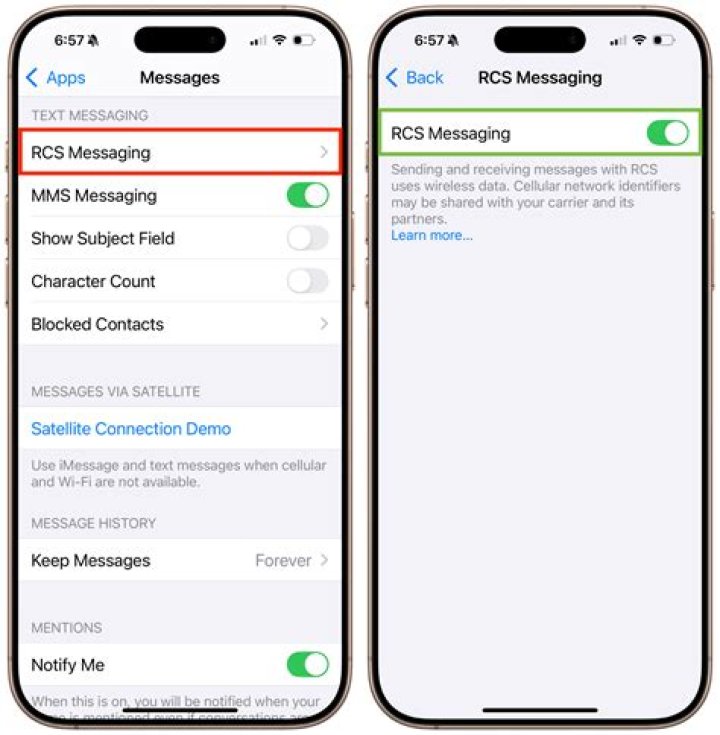
Step 1: Open the Settings app. Launch the main gear icon on your home screen or through Spotlight Search.
Step 2: Scroll down to Apps. In modern iOS builds, Apple consolidated native and third-party app configurations into a dedicated "Apps" menu near the bottom of the main settings screen. Tap it, then select Messages.
Step 3: Locate the Text Messaging section. Scroll down past the iMessage configuration tools until you reach the messaging transmission header. Here, you will see controls for standard SMS, MMS, and advanced network delivery.
Step 4: Switch the RCS Messaging toggle. Tap the green toggle next to RCS Messaging to turn it off, or tap it into the active green position to turn it on.
If you switch the feature off, an alert may ask you to confirm whether you want to revert to standard carrier messaging rates and lower-fidelity transmissions for non-iMessage contacts. Confirm your choice, and the system immediately updates your message transport layer.
What Happens When You Turn the Feature On or Off
Toggling this option changes how iOS packages and sends non-iMessage text threads. Leaving it switched on elevates cross-platform conversations to contemporary standards, whereas switching it off drops conversations back into century-old telecommunications plumbing.
| Messaging Feature | RCS Active (Toggled On) | RCS Inactive (SMS MMS Fallback) |
|---|---|---|
| Media Quality | High-resolution photos and uncompressed video clips | Heavy carrier MMS compression; pixelated media |
| Delivery Indicators | Typing indicators and real-time read receipts | None; basic carrier delivery logs only |
| Group Chat Dynamics | Thread renaming, member adds/removals, clean exits | Rigid MMS groups; split threads and ghost replies |
| Data Route | Cellular data or home Wi-Fi networks | Carrier signaling bands and MMS access points |
| Bubble Color | Green bubble (labeled "Text Message • RCS") | Green bubble (labeled "Text Message • SMS/MMS") |
When the switch is on, your text entry field displays "Text Message • RCS" whenever you chat with an Android user whose phone and provider support the standard. If you toggle it off, that label reverts to "Text Message • SMS", signaling that your phone will route all communication through legacy carrier protocols.
Carrier Compatibility and Missing Toggles Explained
If you follow the navigation steps and find no switch at all, your device is not necessarily broken. Carrier RCS compatibility remains the primary gatekeeper. While major national carriers rolled out support across their consumer tiers, smaller mobile virtual network operators (MVNOs), prepaid lines, and international carriers have taken longer to activate the necessary backend IMS profiles.
To verify whether your carrier has provisioned your line for the protocol, open your iPhone Settings app, select General, and tap About. Scroll down to the physical SIM or eSIM section and tap the Carrier field. Tapping this label cycles through technical network details. If your provider supports the specification, the "IMS Status" or carrier details row will explicitly list Voice, SMS & RCS. If the entry only mentions Voice & SMS, your network provider has not pushed the required carrier bundle to your device.
In that situation, no manual toggle will appear inside your Messages settings. You must wait for your carrier to issue an updated profile through a standard iOS software update or direct operator push.
Troubleshooting Common RCS Glitches on iOS
Switching protocols does not always run smoothly on busy cellular connections. Users frequently report cases where messages stall on "Sending" or default straight to MMS despite having a solid data signal. When modern messaging fails to route properly, several basic steps resolve the majority of issues:
Cycle the switch completely. Head back to Settings > Apps > Messages, toggle RCS off, wait roughly 30 seconds, and toggle it back on. This resets your session token with your carrier's messaging relay server.
Check your cellular data settings. Unlike SMS, which runs on voice control channels, the advanced standard relies on active packet data. If your cellular data is turned off, or if you are on an international roaming plan with data roaming disabled, the system cannot verify your number against the carrier directory.
Reset network configurations. If an iOS update introduces connection drops, go to Settings > General > Transfer or Reset iPhone > Reset > Reset Network Settings. This clears stored Wi-Fi credentials, APN configurations, and carrier caches, forcing your iPhone to pull fresh configuration tokens upon reboot.
Frequently Asked Questions (FAQ)
Q1: Does toggling RCS turn my green text bubbles blue?
No. Apple keeps blue bubbles exclusive to iMessage conversations between Apple hardware. Chats sent to Android devices will remain green, but the text box will indicate "Text Message • RCS" to confirm high-resolution media, read receipts, and typing indicators are active.
Q2: Why is the RCS toggle missing in my Messages settings?
The toggle only appears if your specific wireless carrier has activated the Universal Profile for iPhones on its network. If you are on an MVNO, a prepaid provider, or an unsupported regional carrier, the switch remains hidden until your provider pushes an updated carrier bundle.
Q3: Does turning RCS off affect my iMessage chats with other iPhone users?
No. iMessage operates independently through Apple's push notification service and cloud servers. Toggling this switch changes only how your iPhone routes messages to non-Apple phones or devices that do not run iMessage.
Managing Cross-Platform Messaging on iOS
The addition of an explicit protocol toggle gives iPhone users direct control over their cross-platform interactions. Leaving the setting active delivers a vastly improved communication bridge between Apple and Android ecosystems, doing away with compressed videos and fragile group chats. At the same time, keeping the legacy fallback accessible ensures you are never cut off when operating in areas with spotty data coverage or navigating unsupported carrier networks. Check your Messages settings periodically to verify your carrier status and adjust your messaging configuration to match your network needs.


