How to Stream on TikTok From Your PC: The Ultimate Setup and Gear Guide
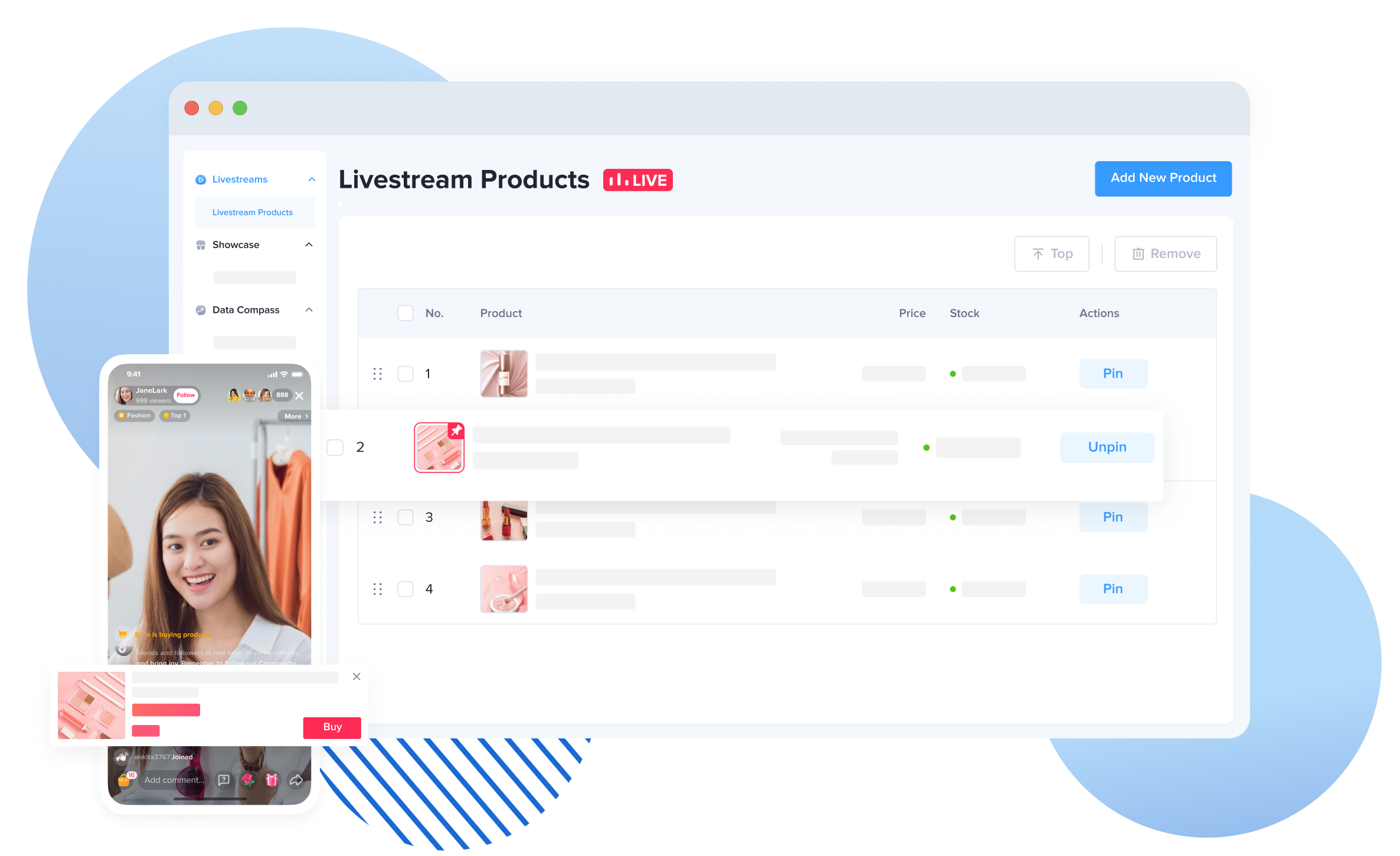
Broadcast gaming migrated to vertical feeds faster than hardware manufacturers anticipated. For years, creators built high-end battlestations tuned exclusively for Twitch and YouTube: ultra-wide monitors, multi-track audio interfaces, and horizontal 16:9 canvas layouts. TikTok’s algorithm upended that playbook by funneling millions of viewers into algorithmic, 9:16 vertical video feeds. Broadcasters attempting a PC gaming live stream quickly hit platform walls, including locked access credentials and rigid software requirements. As highlighted in an Online Tech Tips Report on external hardware workflows, pushing high-fidelity desktop gameplay to TikTok demands a deliberate bridge between traditional broadcast software and ByteDance's restricted ecosystem.
Operating a desktop broadcast on TikTok is fundamentally different from opening an app on an iPhone. Desktop streaming demands precise encoding choices, strict audio routing, and direct management of account privileges. Whether your goal is competitive esports or casual creator content, running an optimized desktop pipeline transforms a chaotic vertical canvas into a crisp, high-retention broadcast.
📌 Key Takeaways:
- Access Barriers: Unlocking desktop broadcast tools requires navigating the platform's follower thresholds or obtaining direct agency credentials through the TikTok Creator Center.
- Software Trade-Offs: TikTok LIVE Studio provides native chat integration, but a customized OBS Studio configuration yields superior encoder efficiency and vertical scene design.
- Hardware Demands: Maintaining stability requires dual monitor streaming setups, dedicated capture cards for multi-PC setups, and strict bitrate capping between 6,000 and 8,000 kbps.
Accessing TikTok LIVE Studio and Obtaining RTMP Keys
The biggest hurdle for PC broadcasters is administrative rather than technical. TikTok does not hand desktop broadcast keys to every registered user. Historically, mobile streaming required basic age verification, but desktop transmission introduces secondary verification tiers. Industry data tracked across creator monitoring groups shows that meeting baseline follower requirements to go live, typically 1,000 followers in most western regions, is only the first checkpoint.
Once you reach that threshold, access splits into two routes: downloading the proprietary desktop client or obtaining dedicated RTMP stream key access. The TikTok LIVE Studio download option appears inside the desktop site's creator menu for eligible accounts. ByteDance grants temporary 7-day trial windows for the native app, which renew automatically if you stream for at least 25 to 50 minutes twice within the evaluation window.
Direct RTMP keys present a different challenge. TikTok restricts open server URLs and stream keys to prevent server overload and protect its ad-insertion engine. Broadcasters can petition for server keys directly through the TikTok Creator Center or join an approved creator agency network (MCN). Unofficial third-party workarounds that extract stream keys using reverse-engineered API tools carry severe account shadowban risks. If your account lacks direct RTMP access, the official LIVE Studio application remains the only compliant pathway to stream directly from Windows.
TikTok LIVE Studio Versus Custom OBS Studio Configuration
Choosing your broadcast software dictates your system's resource consumption and aesthetic flexibility. TikTok LIVE Studio acts as an all-in-one hub tailored for single-PC setups. It integrates chat displays, gift overlays, goal widgets, and basic screen captures within an intuitive interface. However, its rendering pipeline draws heavy GPU resources, occasionally causing micro-stuttering during graphically demanding games.
Seasoned creators frequently opt for OBS Studio configured with vertical canvas plugins. OBS uses fewer background resources, grants granular control over NVIDIA NVENC or AMD AMF hardware encoders, and supports custom VST audio filters. The friction lies in delivery: without native RTMP keys, you cannot push video directly from OBS to TikTok servers. Many broadcasters solve this by routing the OBS virtual camera and an auxiliary audio monitor directly into TikTok LIVE Studio as an input source, combining OBS scene composition with native client delivery.
| Feature / Metric | TikTok LIVE Studio | OBS Studio (Vertical Canvas) |
|---|---|---|
| Setup Complexity | Low (Plug-and-play UI) | Moderate to High (Manual configuration) |
| Hardware Overhead | High (Unoptimized Chromium wrapper) | Low (Direct hardware acceleration) |
| Native Chat & Gifting Alerts | Seamless built-in widgets | Requires browser docks or third-party webhooks |
| Scene Customization | Basic layers and standard templates | Unrestricted modular design and nested scenes |
| Access Requirement | Direct download via account dashboard | Requires raw RTMP server credentials |
Encoder Settings: Bitrate, Resolution, and Framerates
Video encoding for vertical feeds defies standard widescreen logic. TikTok's edge servers enforce strict ingest parameters. Pushing an excessive bitrate causes buffering loops on mobile devices, while under-allocating bandwidth turns fast-motion gameplay into muddy blocks of pixels. Broadcasters must establish solid baselines.
The recommended bitrate and resolution targets for stable transmission sit at 1080x1920 (9:16 aspect ratio) rendered at 60 frames per second. Maintain a constant bitrate (CBR) between 6,000 kbps and 8,000 kbps. While YouTube accepts 15,000 kbps or higher, TikTok ingest nodes routinely throttle streams exceeding 9,000 kbps. Keep your keyframe interval strictly set to 2.0 seconds with the profile configured to High and B-frames set to 2.
Bandwidth reliability takes precedence over raw upload speed. An unstable connection causes dropped frames that trigger automatic resolution drops inside the viewer's feed. Always connect your streaming PC via a wired Cat6 or Cat6e Ethernet cable. Treat 15 Mbps of dedicated upstream bandwidth as your operational minimum, leaving ample headroom above your 8 Mbps encoder output for network stability.
Building the Vertical Video Layout and Managing Capture Cards
Shrinking a 16:9 widescreen game into a 9:16 mobile canvas creates empty black bars unless you arrange screen elements deliberately. The standard vertical layout divides the 1080x1920 frame into functional tiers. The gameplay window anchors the middle third of the screen. Your camera source claims the upper third, while stream alerts, event tickers, and active viewer chat populate the bottom third.
Managing this geometry requires careful cropping. Duplicate your primary game capture source within your canvas. Zoom the background duplicate to fill the entire vertical canvas, apply a heavy Gaussian blur filter, and keep the main, unblurred widescreen feed centered in sharp focus. This technique eliminates jarring dead space without obscuring critical in-game interfaces.
Dual-PC streaming setups demand a robust capture card setup. When looping an auxiliary gaming rig or console into your streaming PC, choose an internal PCIe card or high-bandwidth USB 3.2 Gen 2 capture card capable of handling 4K 60fps passthrough with sub-50ms latency. Configure your capture card's input resolution to native 1080p or 1440p before scaling inside your vertical broadcasting canvas. This eliminates artifacting caused by uneven downscaling steps.
Fine-Tuning Stream Audio Mixers and Studio Lighting
Poor visual quality frustrates viewers, but bad audio makes them leave instantly. Mobile users listen through earbuds or phone speakers, where muddy mixes become grating within seconds. Proper stream audio mixer settings solve this problem by isolating, balancing, and processing individual sound channels.
Separate your inputs inside Windows using virtual audio cables or a hardware mixer interface. Route your voice, desktop gameplay, and background music onto independent channels. Apply an input filter chain on your microphone: a noise suppression filter (such as RNNoise), a subtle noise gate set just above room ambiance, and an audio compressor targeting a -12 dB to -6 dB threshold. This setup keeps your voice crisp and intelligible over explosive in-game audio without peaking.
Visual presentation hinges on webcam lighting optimization. Mobile screens are small, meaning your face provides the emotional focus of the broadcast. Avoid relying on harsh ceiling lights or monitor glow. Install a three-point lighting layout consisting of a soft key light positioned 45 degrees off-axis, a fill light dialed to 50 percent intensity on the opposite side, and a subtle rim light behind your chair to separate your silhouette from the background. Keep your key light color temperature between 4500K and 5600K to match daylight tones, preventing the smearing and grain common to low-light webcam sensors.
Display Configurations for Live Monitoring
Broadcasting vertical content from a desktop naturally demands dual monitor streaming workflows. Trying to juggle fullscreen titles, chat reactions, stream health metrics, and scene previews on a single display is impossible during live gaming.
Arrange your primary horizontal monitor directly in front of you, reserved entirely for full-screen low-latency gameplay. Mount a secondary vertical monitor (rotated 90 degrees into portrait orientation) directly beside it. This portrait layout matches TikTok's 9:16 orientation, letting you monitor your broadcast canvas, read rapid mobile chat feeds, and track incoming gifts at eye level without breaking concentration.
Frequently Asked Questions (FAQ)
Q1: Can I stream on TikTok from my PC without 1,000 followers?
A1: Officially, TikTok gates broadcast features behind account thresholds, requiring at least 1,000 followers in most regions to enable LIVE access. However, accounts partnered with verified TikTok Creator Network agencies or approved for specialized beta programs in the TikTok Creator Center can occasionally gain access sooner.
Q2: Why does my stream look blurry on viewers' phones despite high OBS settings?
A2: This usually stems from exceeding TikTok's maximum ingest limit or using incorrect scaling filters. Keep your bitrate between 6,000 and 8,000 kbps. If your bitrate swings too high, TikTok’s transcoding engine compresses your video feed aggressively. Ensure your canvas resolution is set to exactly 1080x1920 using the Lanczos downscale filter.
Q3: Is it possible to output to both Twitch and TikTok at the same time?
A3: Yes, provided your hardware and bandwidth can sustain dual encoding sessions. Using OBS Studio with secondary vertical canvas plugins allows you to broadcast horizontally to Twitch while simultaneously streaming vertically to TikTok. Verify your platform partner agreements first, as certain affiliate tiers enforce exclusivity windows for simultaneous live broadcasts.
Long-Term Desktop Broadcasting Strategy
Streaming from a PC to TikTok bridges high-performance gaming hardware with algorithmic content distribution. The platform's user base consumes media at a blistering pace, rewarding broadcasters who deliver crisp video, balanced audio, and dynamic vertical layouts from the very first frame. Building an efficient technical workflow, from choosing between LIVE Studio and OBS to organizing your audio mixer and portrait monitor displays, removes friction from your setup. Treat your configuration like a traditional broadcast studio, dial in your hardware limits, and let your gameplay capture viewer attention naturally.


