How to Fix a Yellow Phone Screen: Complete Android and iPhone Guide
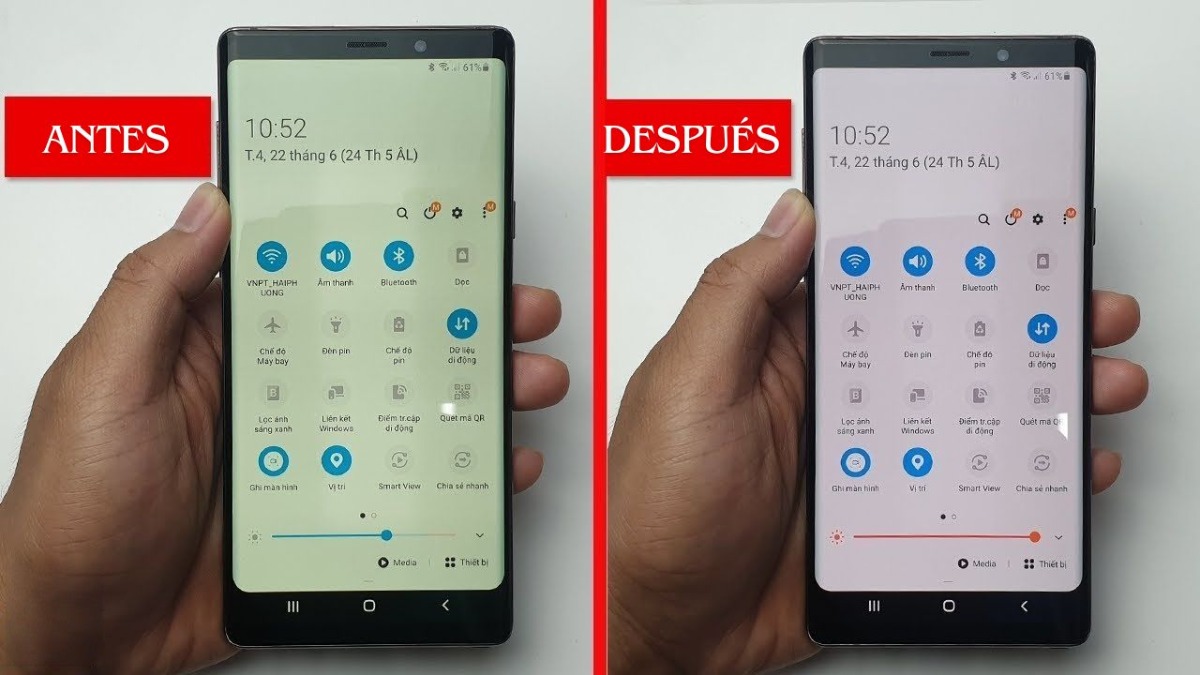
A sudden amber tint across a high-resolution smartphone display can ruin the mobile experience in seconds. Photos look muddy, clean white backgrounds turn into parchment, and interface contrast collapses. While users often panic and assume their display glass has failed permanently, the vast majority of warm-tint complaints stem from automated operating system features designed to limit circadian disruption. As documented in a recent technical breakdown by the Androidsis on MSN Report, modern mobile operating systems bundle multiple overlapping color profiles that can activate unexpectedly following background software updates or schedule changes.
Determining whether that sickly cast is an intentional software profile or genuine physical damage requires systematic diagnosis. Modern smartphone panels run on complex color reproduction pipelines, balancing hardware subpixel wear against ambient light sensors and circadian software timers. This guide walks through the exact calibration checks, toggles, and hardware diagnostics needed to restore proper panel balance on both Android and iOS devices.
📌 Key Takeaways:
- The Primary Culprit: Automated circadian routines like Night Light Android, Night Shift iOS, and ambient white-balance sensors account for over 80% of reported yellow-tint anomalies.
- Software vs. Hardware: If the yellow tint disappears in device screenshots viewed on another display, the issue is purely a software calibration setting rather than hardware display failure.
- Physical Wear Vectors: Permanent discoloration typically stems from differential blue subpixel decay in aging OLED panels or heat-induced optical clear adhesive (OCA) breakdown in laminated LCD units.
Deactivating Circadian Night Shields and Blue Light Filters
Operating systems on contemporary phones prioritize circadian health, pushing display tones toward the warmer spectrum as ambient daylight wanes. The software strips out high-energy blue wavelengths between 415 and 455 nanometers, pushing the white point toward deep amber. Often, these modes activate because of a forgotten sunset-to-sunrise schedule or an accidental touch in the quick-settings tray.
On Android, swipe down twice from the top of the display to access the Quick Settings panel. Look for the Night Light Android toggle (labeled "Eye Comfort Shield" on Samsung Galaxy handsets or "Reading mode toggle" on Xiaomi MIUI/HyperOS devices). Long-press the tile to enter its system configuration. Verify whether an automated schedule is active. If the slider is set to high intensity, drag it toward the cool end of the spectrum or disable the scheduled activation entirely.
For iPhone owners, open Settings > Display & Brightness > Night Shift iOS. Check whether the "Scheduled" or "Manually Enable Until Tomorrow" options are engaged. The "Color Temperature" slider at the bottom of the screen dictates the severity of the warmth; moving this bar toward "Less Warm" reintroduces the lost blue spectrum. If you prefer automated evening filtering without a heavy mustard tint, calibrate the slider to roughly 20% intensity rather than the aggressive factory default.
Managing Ambient Color Sensors and True Tone Calibration
Even with night filters switched off, modern screens dynamically adapt to the physical room around you. Apple implements multichannel ambient light sensors to power iPhone True Tone, a feature that continuously shifts the display color temperature to mirror the correlated color temperature of ambient room lighting. Under incandescent domestic bulbs or warm desk lamps (2700K to 3000K), True Tone aggressively warms the panel to make paper-white web pages blend with room lighting.
Android flagships from Google, OnePlus, and Samsung feature identical mechanisms under names such as "Adaptive Color Tone" or "Natural Tone Display." When moving from direct sunlight into a cozy living room, the shift can register as a distinct yellow defect.
To establish baseline panel calibration without environmental interference, disable ambient tracking:
On iOS, pull down the Control Center, long-press the brightness slider, and tap the True Tone icon in the lower right to turn it off. On Android, navigate to Settings > Display, locate "Adaptive Color Tone" or "Eye Comfort," and switch it off. Once disabled, the panel locks to its factory calibration, remaining uniform regardless of whether you stand under daylight or tungsten lamps.
Accessibility Overlays and Custom Screen Color Calibration
When primary display toggles fail to clear the tint, secondary accessibility settings are almost always to blame. Mobile platforms include high-contrast viewing aids and color-blindness accommodations that sit on top of the graphics render pipeline. A stray accessibility shortcut can engage these profiles without showing an active icon on your home screen.
On Android devices, navigate to Settings > Accessibility > Vision Enhancements > Color Adjustment (or "Color Correction"). If an accidental tap enabled "Tritanopia" (blue-yellow correction) or an inverted color curve, turn the master switch off. Next, navigate to your device's core screen color calibration panel under standard display settings. Switch from "Natural" or "Warm" to "Vivid" or "Boosted." Most modern vendor skins provide an advanced RGB slider suite here; bumping green down one notch and blue up one notch will immediately neutralize residual software warmth.
On iOS, check Settings > Accessibility > Display & Text Size > Accessibility color filters. If "Color Filters" is toggled on, examine which profile is active. Users frequently enable "Color Tint" by accident, locking the screen to an amber overlay. Toggle the feature off, or use the integrated hue and intensity sliders to shift the white point back toward an immaculate D65 reference standard.

Diagnostic Matrix: Software Glitch Versus Hardware Failure
To pinpoint whether your display problem requires a setting toggle or a service center visit, run the quick screenshot diagnostic. Take a standard screenshot of a pure white background on your phone. Send that image file to a secondary device, such as a desktop computer, tablet, or friend's phone, and inspect it. If the image appears crisp and neutral on the second screen, your panel's underlying software is generating clean data, isolating the yellowing to a local display toggle or hardware fault. Use the diagnostic matrix below to isolate the root cause.
| Visual Symptom | Probable Cause | Correction Vector | Hardware Risk Level |
|---|---|---|---|
| Uniform amber tint across whole screen; disappears in daylight | True Tone / Adaptive Color sensing warm ambient light | Disable True Tone or Adaptive Color in Display settings | None (Normal operation) |
| Sudden yellow shift at specific hour every evening | Night Light Android or Night Shift iOS automated schedule | Adjust Blue light filter setting schedule to "None" | None (Software automation) |
| Persistent warm cast with status bar ghost images visible | OLED screen burn-in and AMOLED panel degradation | Panel replacement required; irreversible subpixel wear | High (Permanent physical decay) |
| Yellow patches along edges or corners of older LCD screen | LCD adhesive yellowing from heat or battery swelling | Digitizer/panel assembly replacement; inspect battery | Critical (Potential thermal or battery hazard) |
OLED Burn-in, Subpixel Decay, and Adhesive Degradation
When every software setting shows clean configurations but the display remains visibly jaundiced, the problem moves into physical hardware failure. Organic Light Emitting Diode (OLED) and Active Matrix OLED (AMOLED) panels create light through discrete red, green, and blue organic subpixels. Blue subpixels possess the shortest operational lifespan and the lowest luminous efficiency. To generate equivalent brightness, blue emitters require significantly more driving current, which accelerates their thermodynamic decay over thousands of operational hours.
As blue subpixels lose peak luminance, the panel loses its ability to hit a pure 6500K white point. The dominant remaining red and green emitters combine visually, casting an indelible yellowish-green sheen across frequently illuminated sectors of the glass. This degradation accelerates when devices run continuous navigation apps, static high-brightness retail displays, or persistent white interface elements under hot summer conditions.
Liquid crystal displays (LCDs), common on entry-level Android devices and legacy iPhones like the iPhone 11 or SE, fail differently. LCDs rely on an LED backlight firing through liquid crystal layers bound to polarizing sheets with Optical Clear Adhesive (OCA). Prolonged internal heat, often produced by heavy mobile gaming while fast-charging, causes cheap or aged adhesive layers to polymerize and brown. This LCD adhesive yellowing typically begins as localized, cloudy yellow stains around the perimeter of the bezel, where processor heat dissipation concentrates.
Repair Economics, Panel Replacement, and Warranty Paths
Confirming an irreversible hardware display failure forces a repair-versus-replace calculation. Genuine AMOLED panel assemblies from tier-one manufacturers command steep prices. Replacing an OLED display on a recent flagship runs between $220 and $380 through authorized service channels, while budget LCD swaps generally range from $70 to $130.
Before paying out of pocket, review your warranty terms and local consumer protection statutes. If an OLED display exhibits uneven, severe yellowing within its initial 12-month manufacturer warranty window without signs of drop impacts or water ingress, factory repair policies classify this as a defective panel assembly. Document the defect clearly: photograph the device displaying an untinted 50% gray test card alongside a color-calibrated monitor running at an industry-standard 6500K color profile.
If your device is outside warranty coverage and the yellowing is uniform rather than patchy, consider using accessibility color filters as a stopgap measure. By applying a digital blue-tint overlay through the operating system's accessibility suite, you can offset degraded panel warmth digitally. This workaround reduces overall peak brightness by roughly 10% to 15%, but it costs nothing and extends the practical service life of an otherwise functional daily driver.
Frequently Asked Questions (FAQ)
Q1: Why did my phone screen turn yellow immediately after a software update?
A: Major operating system upgrades often reset personalized display preferences to factory defaults. Updates frequently enable automated blue light filters, Night Light schedules, or ambient True Tone sensors out of the box. Check your display brightness menu and turn off any scheduled night modes first.
Q2: Can a degraded battery cause yellow spots on a phone screen?
A: Yes. When a lithium-ion battery degrades, it can expand and push directly against the rear of the display assembly. This mechanical pressure pinches the internal optical layers of an LCD or stresses the thin-film encapsulation of an OLED panel, creating localized yellowish or purplish pressure rings. If the yellowing aligns with screen bulging, stop using the phone immediately to avoid thermal risks.
Q3: Will UV light fix yellow screen adhesive like it used to on older phones?
A: No. In the early days of laminated smartphone screens, curing wet adhesive under UV lamps was a popular workshop fix for unevaporated optical glue. Modern displays use pre-cured optical clear adhesive sheets; exposure to external UV lamps will not reverse heat-induced polymer discoloration and can degrade the front oleophobic coating.
Q4: Does running the phone in dark mode prevent yellow screen aging?
A: Dark mode significantly reduces physical wear on OLED panels. Because black pixels on an OLED screen remain completely powered off, the vulnerable blue organic emitters undergo far less operational stress over time, preventing early subpixel decay and uneven panel yellowing.
Display Maintenance and Longevity
Display panels represent the single most expensive component on modern glass-slab hardware. Keeping color reproduction clean requires treating display management as ongoing maintenance rather than a set-and-forget toggle. Periodically audit quick settings to ensure ambient trackers like True Tone or Night Light run only when you genuinely want them. For OLED owners, keeping overall display brightness below 75% for routine indoor tasks and utilizing system-wide dark modes prevents premature blue subpixel burnout, ensuring your screen remains crisp, neutral, and color-accurate for years of daily use.