How to Make veadotube Transparent on OBS: Complete PNGtuber Stream Setup Guide

Setting up a reactive 2D avatar transformed streaming accessibility for creators who want an expressive digital persona without the heavy GPU overhead of 3D motion tracking. Veadotube mini remains the industry standard for lightweight PNGtuber setups, letting broadcasters animate speaking, blinking, and emotion shifts using raw microphone input. Yet, newcomer streams are routinely plagued by an unsightly neon green square or a flat gray block framing their character in OBS Studio.
Fixing this background issue does not require complex rendering tricks or third-party masking software. OBS Studio provides direct support for native alpha channel transparency, eliminating the frayed pixel edges and color bleed that typically ruin amateur broadcasts. Achieving a seamless floating overlay comes down to coordinating a single toggle within veadotube alongside the correct capture hook in your OBS sources.
📌 Key Takeaways:
- The Direct Fix: Setting veadotube mini to its checkered background and enabling "Allow Transparency" inside an OBS Game Capture source delivers clean alpha channel transparency without messy filters.
- The Artifact Trap: Relying on a Chroma Key or Color Key filter over a green screen introduces color fringing, cuts anti-aliased linework, and wastes GPU cycles.
- Audio Calibration: Fine-tuning the microphone threshold inside veadotube prevents mechanical keyboard clatter and breathing sounds from triggering false mouth movements.
Native Alpha Transparency Versus Outdated Chroma Keying
Broadcasters stepping into avatar streaming often default to old video production instincts. They select a bright green or magenta backdrop in veadotube and paste a Chroma Key filter across the source in OBS Studio. This approach produces subpar results. Chroma key algorithms scan for chromatic values and discard neighboring pixels within a set tolerance, stripping out fine linework, clipping semi-transparent highlights, and leaving a thin discoloration halo around dark lines.
Veadotube mini renders on a graphic pipeline capable of outputting a clean alpha channel, an explicit data channel defining pixel opacity from 0% to 100%. When you feed native alpha data into OBS, semi-transparent details like soft shadows, blush, translucent glasses, and anti-aliased line art remain intact. The avatar blends into stream gameplay and camera frames without edge degradation or manual color spill suppression.
Skipping color keys also preserves hardware performance. Eliminating shader filters across dynamic 60-frames-per-second scene sources reduces stream composition overhead on entry-level systems.
Configuring veadotube mini for Zero-Loss Background Passthrough
Clean integration begins directly inside the veadotube mini client before opening OBS Studio. The software includes built-in background states cycling through solid colors and native transparency.
- Launch veadotube mini and locate the small circle icon at the bottom-left corner of the window, which controls the preview stage background.
- Click the circle icon repeatedly to cycle through the options: green, blue, magenta, black, white, and a gray-and-white checkerboard.
- Stop when the workspace displays the checkerboard pattern. In graphic engines, checkerboards signify a zero-alpha channel, indicating that no pixel data exists behind your illustrations.
- Keep the veadotube window running. Minimizing it to the taskbar can pause direct frame rendering on certain Windows power profiles, freezing your avatar mid-broadcast.
Ensure your avatar assets are imported as 32-bit PNG files with transparent backgrounds. If your original art files contain solid white fills on their canvas layers, veadotube will render those internal fills regardless of your application background setting.
Setting Up Direct Game Capture in OBS Studio
Capturing veadotube does not require a Window Capture or Display Capture source. A Game Capture source provides direct access to the application's graphic buffer, reading transparency flags without supplementary processing.
Follow these steps within OBS Studio:
- Under the Sources dock, click the + icon and select Game Capture.
- Label the source clearly, such as
PNGtuber Avatar, and click OK. - In the properties panel, change the Mode dropdown to Capture specific window.
- Open the Window dropdown and select
[veadotube mini.exe]: veadotube mini. - Scroll down to the checkboxes and check Allow Transparency. This specific setting instructs OBS to interpret empty alpha pixels as transparent canvas space.
- Leave "Hook Rate" at Normal and ensure "Capture Cursor" is unchecked so accidental mouse hovers over the client stay off-screen.
- Click OK to close the properties dialog.
Your avatar will now appear directly on your stream canvas, completely isolated from any UI borders or solid panels. You can reposition and rescale the avatar freely using OBS transform handles (Ctrl+E or dragging the red selection bounding box).
Comparing OBS Capture Methods for Reactive Avatars
While direct Game Capture serves as the standard pipeline, alternative ingestion methods exist depending on your hardware environment, operating system compatibility, and plugin preferences.
| Capture Method | Transparency Mechanism | Render Quality & Artifacts | Resource Overhead |
|---|---|---|---|
| Game Capture (Recommended) | Direct Alpha Channel hook | Flawless; crisp anti-aliasing; zero color bleeding | Extremely low ( |
| Spout2 Plugin Hook | Shared GPU memory texture buffer | Identical to Game Capture; ultra-stable frame rates | Negligible; requires third-party OBS plugin installation |
| Window Capture + Color Key | Algorithmic subtraction of background hue | Visible pixel halos; jagged edges; clips matching colors | Moderate GPU shader pass required |
| Window Capture (Windows Graphics Capture) | WGC Desktop API layer | Pulls solid client frame; requires color keying to clear | Low to Moderate; captures client UI panels unless cropped |
For users running multi-app production suites or experiencing hook conflicts between OBS and fullscreen titles, the spout2 capture plugin serves as an exceptional fallback. Spout2 transmits raw visual textures across programs via direct GPU memory sharing. By using the Spout2 version of veadotube alongside the OBS Spout2 plugin, you achieve perfect alpha channel transparency without running into Windows hook detection failures.
Calibrating Microphone Thresholds for Natural Mouth Movements
Once the avatar renders transparently, the visual illusion depends entirely on vocal tracking responsiveness. Veadotube mini triggers mouth-open states and blinking frames based on input amplitude. Setting these triggers improperly leads to an avatar that chatters when you type or remains frozen while you speak softly.
Locate the microphone icon on veadotube's primary dashboard. Select your actual broadcast hardware rather than virtual lines to minimize latency. Below the hardware selection sits the sensitivity meter, displayed as a vertical or horizontal audio bar with adjustable sliding indicators.
Set the two primary markers:
- The Silence Threshold (Lower Limit): Remain silent and breathe normally while typing on your keyboard. Set the lower trigger slightly above the ambient noise floor. This ensures background keyboard switches, mouse clicks, and room echoes do not trigger the speaking animation.
- The Activation Threshold (Upper Limit): Speak at your natural conversational volume. The indicator should easily cross this mark whenever you pronounce words, toggling the character to the open-mouth state.
Veadotube also features an animation speed slider. Adjusting this value between 120ms and 200ms creates a balanced hold time. A short delay prevents the mouth from fluttering violently between rapid syllables, producing a cleaner, more readable animation.
Resolving Black Screens and Hook Conflicts
Streamers occasionally run into a glitch where the OBS Game Capture source shows an empty black screen, even with "Allow Transparency" properly checked. This problem stems from graphic permission conflicts or multi-GPU switching on modern gaming laptops.
First, check GPU assignment matching. If OBS Studio is assigned to your discrete graphics processor (such as an NVIDIA RTX 4070 or AMD Radeon 7800M) while veadotube defaults to integrated system graphics (Intel Iris Xe or AMD Radeon Graphics), the Game Capture hook cannot bridge the memory pools. Force both programs to run on the high-performance GPU through Windows Display Settings:
- Open Windows Settings > System > Display > Graphics.
- Add both
obs64.exeandveadotube mini.exeto the custom app list. - Click Options for each app and set the preference to High Performance.
Second, disable third-party desktop overlays. Tools like Discord Overlay, RivaTuner Statistics Server, and GeForce Experience can conflict with the Game Capture graphics hook. Adding an exclusion profile inside RivaTuner for veadotube mini resolves initialization errors immediately.
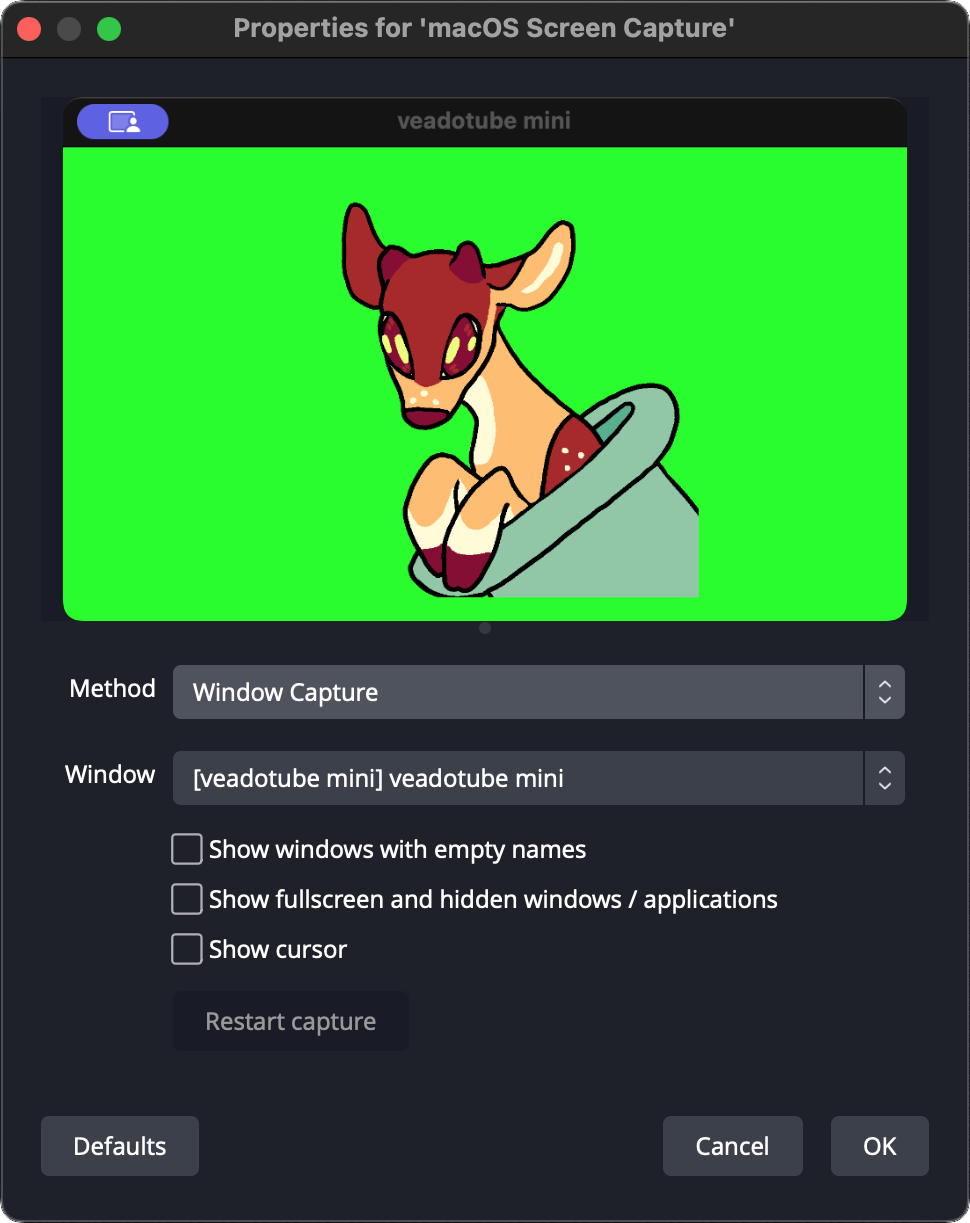
If local permissions continue to block the hook, switch the capture method. Change your OBS source to Window Capture, select Windows 10 / 11 (Windows Graphics Capture) as the capture method, set veadotube's background to pure magenta, and apply a subtle Color Key filter. Treat this strictly as a secondary workaround, as direct Game Capture with alpha transparency remains the superior method for production quality.
Scene Organization and Overlay Layering
Creating an immersive visual presentation requires intentional scene composition. Avoid dropping your avatar directly onto your root gaming scene without organizational hierarchy.
Create a dedicated scene named [NEST] Avatar Rig. Place your configured Game Capture source inside this scene, applying any persistent filters you might want, such as a subtle Color Correction filter to balance lighting, or a low-intensity drop shadow.
Next, add that entire [NEST] Avatar Rig scene as a nested Scene Source inside your actual stream scenes (e.g., Gameplay Scene, Just Chatting, React Layout). Layer the avatar above your game display and camera borders, but beneath alert boxes, event lists, and transient chat overlays.
This nested workflow allows you to resize, mute, or relocate your transparent character across multiple layouts instantly without breaking your base transparency parameters or desyncing your microphone settings.
Frequently Asked Questions (FAQ)
Q: Why is my avatar showing a black box behind it even though I checked "Allow Transparency"?
A: This happens when the background toggle inside veadotube mini is set to solid black instead of the checkerboard pattern. Click the small circular background icon at the bottom of the veadotube interface until the canvas displays the gray-and-white grid, then refresh your OBS Game Capture source.
Q: Can I run veadotube mini minimized while streaming to save taskbar space?
A: No. Minimizing the veadotube client causes Windows to throttle or pause its rendering pipeline, which freezes the avatar in OBS. You can, however, keep the window open behind other apps or place it off-screen on a secondary monitor.
Q: What is the visual difference between Chroma Key and Color Key filters?
A: Chroma Key targets saturation and hue algorithms designed for green screens in live-action video, which frequently erodes fine digital linework. Color Key allows targeted removal of a specific hex code with less broad feathering. However, neither matches the edge precision of a native alpha channel via Game Capture.
Q: Does running veadotube through Game Capture impact gaming performance?
A: The performance impact is negligible. Veadotube mini typically utilizes less than 1% CPU and negligible VRAM. Running direct Game Capture hooks avoids the continuous real-time shader calculations required by color keying filters.
Final Polish for Modern PNGtuber Broadcasts
Mastering PNGtuber streaming comes down to precise scene construction. Moving past the habit of slapping green screen filters over everyday desktop software instantly elevates your stream's visual production. Direct alpha capture keeps your illustrations clean, preserves delicate line art, and lets your reactive expressions shine through without distracting technical artifacts.
Configure veadotube to display its native checkered background, pair it with an OBS Game Capture source using transparency flags, and fine-tune your microphone thresholds. With your visual pipeline properly routed, you can focus on building an engaging, high-energy broadcast.