The Sims 4 T.O.O.L. Mod Masterclass: How to Install, Move Objects Off-Lot, and Fix Bugs
Standard Build Mode in The Sims 4 enforces an invisible boundary: the lot line. For players attempting to create dense town centers, cohesive suburban streets, or furnished public waterfronts, that boundary acts as a strict creative bottleneck. TwistedMexi’s T.O.O.L. mod, an acronym for "Take Objects Off Lot", bypasses those hard-coded limits entirely by letting builders manipulate items anywhere within the rendered world map.
Navigating off-lot building requires technical precision, particularly after major game patches disrupt script files. As highlighted in a recent Sims Community Report covering neighborhood customization, player-driven world modification has transformed how simmers treat public spaces, turning dead decorative zones into usable environments. Mastering the utility requires understanding object elevation, coordinate grids, and save integrity.
📌 Key Takeaways:
- Core Functionality: T.O.O.L. unlocks full 3D manipulation, move, elevate, rotate, and scale, both inside and outside standard lot boundaries.
- Installation Rule: Script files must remain no more than one subfolder deep inside your Mods directory to function.
- Gameplay Continuity: Off-lot objects persist in save files even without the mod installed, though modifying them further requires active scripts.
The Architecture of TwistedMexi’s Take Objects Off Lot Mod
Vanilla The Sims 4 binds items to a rigid 2D lot grid, offering only primitive elevation controls through keyboard hotkeys like `9` and `0`. T.O.O.L. alters this framework by reading and editing the exact XYZ coordinates, pitch, roll, and yaw values of any placed object in the world. Written by prominent modder TwistedMexi, the utility essentially injects an external editing interface straight into Live Mode and Build Mode.
This degree of freedom changes world editing from a flat staging area into an open canvas. You can pick up a decorative street lamp, carry it past the lot perimeter, and embed it into a municipal sidewalk across the street. The engine treats off-lot items as persistent world props rather than active lot inventory.
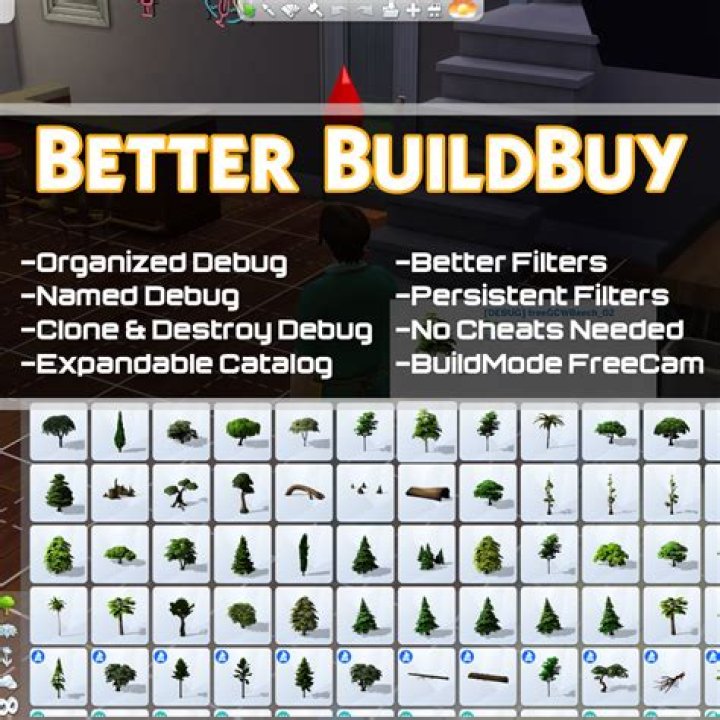
Pairing T.O.O.L. with TwistedMexi’s companion mod, Better BuildBuy, expands this workflow even further. Better BuildBuy integrates the T.O.O.L. interface directly into standard Build Mode, removing the historical requirement to jump back and forth into Live Mode to activate coordinate commands.
Correct Installation Across the Script Mods Folder
Installing script mods incorrectly remains the primary reason players encounter missing menus or game freezes. T.O.O.L. contains both standard resource assets (`.package`) and custom Python scripts (`.ts4script`). The game engine cannot parse Python scripts buried several layers deep within directory paths.
Follow this setup procedure to ensure flawless initialization:
- Navigate to your system directory:
Documents\Electronic Arts\The Sims 4\Mods. - Create a dedicated folder named exactly
T.O.O.Ldirectly inside that directory. Do not place it inside nested subdirectories. - Extract the downloaded archive and drop both
Tmex-TOOL.packageandTmex-TOOL.ts4scriptinto that folder. - Launch *The Sims 4*, open Game Options, select Other, and check both Enable Custom Content and Mods and Script Mods Allowed.
- Apply changes and restart your game.
Keeping the mod precisely one level deep prevents script execution failures when the game loads world coordinate tables.
Core Controls, Toggle UI Hotkey, and Precision Placement
Interacting with T.O.O.L. relies on specific input triggers that differ from standard point-and-click building. By default, pressing `Shift + T` functions as the primary toggle UI hotkey when your cursor hovers over an active lot or street space. This keybind brings up the radial coordinate HUD.
Working with off-lot objects requires selecting them first. Holding `Shift` and clicking an object highlights it with a green outline, marking it as the active target for movement.
The mod operates across five distinct geometric mechanics:
- Elevate: Adjusts absolute height above terrain. Positive values lift items into the air; negative values drop them down, allowing you to nest foundations or sink basement windows into hillsides.
- Move: Translates items along horizontal X and Y axes using custom numeric offsets or real-time cursor snaps.
- Rotate: Governs not only standard 45-degree planar turns, but full 360-degree rotation across horizontal, vertical, and tilt planes.
- Scale: Resizes items freely from 0.01 to 20 times their default scale, far beyond the binary sizing hotkeys provided by the vanilla game.
- Surface Snapping: Toggles whether an item sticks automatically to terrain slopes, counter heights, and roof lines, or floats freely in space.
| Feature | Vanilla Build Mode | T.O.O.L. Mod Utility |
|---|---|---|
| Placement Boundary | Strictly inside purchased lot lines | Anywhere across the loaded neighborhood map |
| Object Elevation | Fixed incremental steps (9 and 0 keys) | Continuous precision inputs down to 0.01 units |
| Rotational Axis | Yaw-only (horizontal turning) | Full 3-axis rotation (Yaw, Pitch, Roll) |
| Surface Snapping | Enforced automatically on slotted surfaces | Selectable toggle for floating or free placement |
Neighborhood Transformation and Off-Lot World Editing
Modifying public areas bridges the gap between individual houses and surrounding world art. You can construct shared parks in empty neighborhood clearings, install functional picnic tables on sidewalks, or populate riverbanks with fishing docks and rowboats.
Keep functional routing top of mind. Sims will route to interactive objects outside lot lines, such as chess tables, public restrooms, or benches, provided their routing footprints do not collide with world deco meshes.
Never block pre-programmed pedestrian portals. The game spawns townies and service workers from specific invisible nodes located near road edges and map boundaries. Obstructing these nodes with large physical objects disrupts neighbor walk-by schedules and leads to simulation lag. Keep walkways wide and clear of solid collisions.
Save File Troubleshooting and Patch Compatibility Protocols
Game stability when running coordinate mods depends on careful maintenance. Because T.O.O.L. hooks directly into core UI frameworks, major game patches often break interface scripts.
When EA pushes an update, patch compatibility should be your immediate priority. Outdated script files can trigger infinite UI loading screens, missing contextual menus, or UI exception popups generated by mod trackers.
Follow this troubleshooting checklist if you experience coordinate drift or mod failure:
- Clear Mod Cache Files: Close the game and delete `localthumbcache.package` from your `Documents\Electronic Arts\The Sims 4` folder. This forces the engine to clear lingering UI scripts.
- Identify Ghost Selections: If items highlight in green without your input, press `Shift + T` in an open space and select Deselect All to reset the tracking buffer.
- Recovering Displaced Objects: If a game patch relocates off-lot items to coordinate 0,0,0 (often the center of the world map or underground), reload an earlier version from your in-game Recover Save menu rather than saving over the corrupted state.
- Temporary Mod Disabling: If you load your save without T.O.O.L. installed, off-lot objects do not vanish. They remain frozen in place as static objects. You cannot move or delete them, however, until you reinstall an updated version of the mod.
Regularly backing up your `saves` directory before major patching cycles prevents unrecoverable terrain collisions.
Frequently Asked Questions (FAQ)
Q1: Do off-lot objects disappear if I update or uninstall the T.O.O.L. mod?
A1: No. Placed objects become part of the save file’s permanent world data. If you remove the mod, the items remain exactly where you left them. You will simply lose the ability to pick them up, move them, or delete them until you reinstall the mod.
Q2: Can Sims interact with off-lot objects placed outside lot boundaries?
A2: Yes, provided the item has built-in autonomous or player-directed interactions and clear routing paths. Sims can sit on off-lot benches, play chess at off-lot tables, and read books near placed decor, as long as the terrain around the item remains walkable.
Q3: Why doesn't the Shift + T menu open when I press it?
A3: This almost always points to a folder depth error. Ensure `Tmex-TOOL.ts4script` sits directly inside your designated folder within the main `Mods` folder, and not two or more folders deep. Additionally, ensure that Script Mods Allowed remains checked in your in-game Game Options menu.
Maintaining Creative Control in Modern Sims 4 Modding
Mastering TwistedMexi's T.O.O.L. mod removes the arbitrary architectural limits that have defined the game since its launch. By controlling object elevation, angular tilt, and free coordinate placement, you gain the power to turn blank neighborhood streets into lively, immersive districts.
Treat every public space modification with deliberate care. Maintain backups of your primary save files, stay on top of patch updates, and manage your script files carefully. With those protocols in place, your worlds will look seamless, functional, and entirely your own.